

EZStation 3.0 | Uniview Video Management Software | Free Download
$0.00
EZStation 3.0: Unified Vision, Unmatched Control
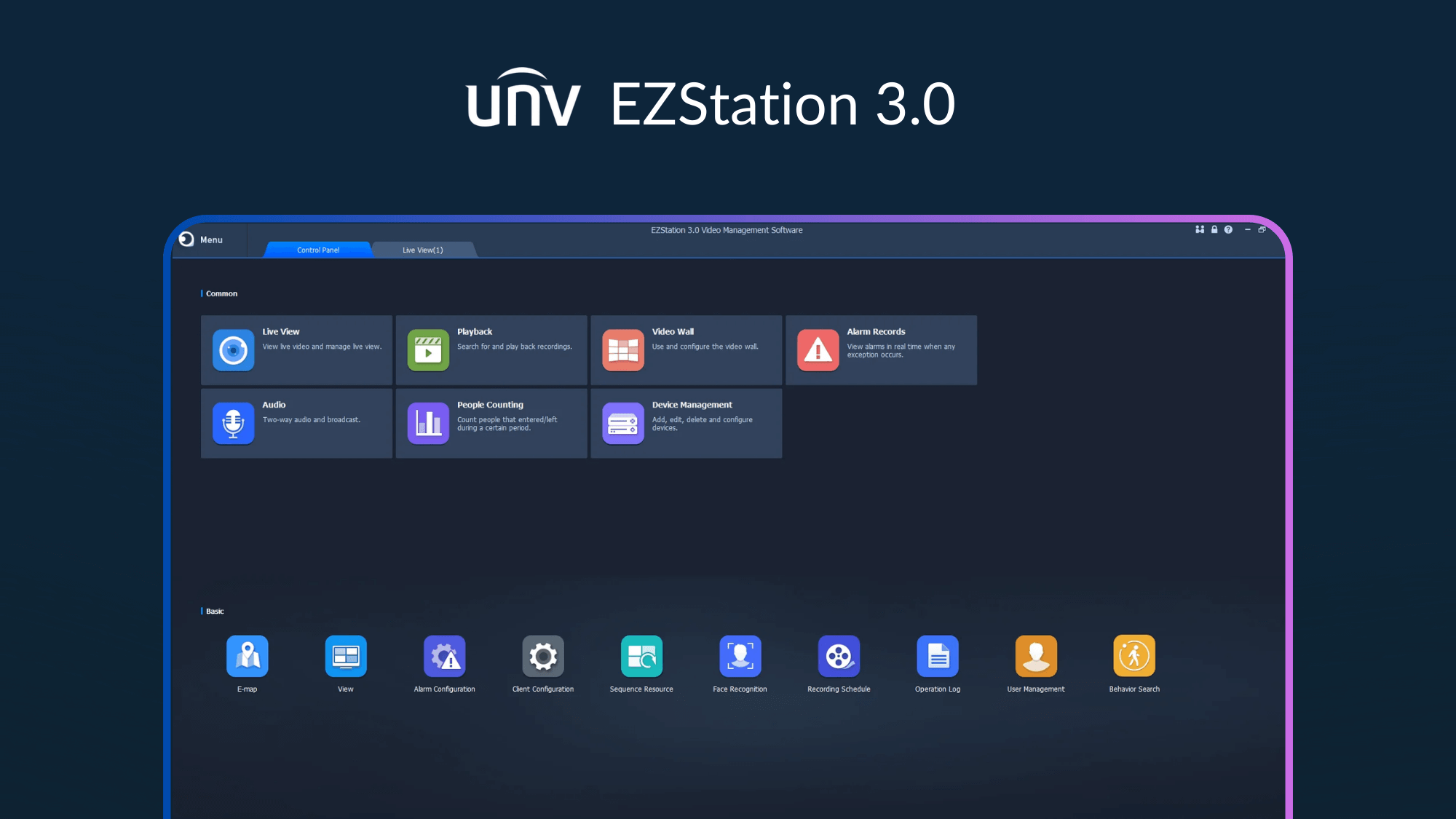
Step into the command center of your security infrastructure with EZStation 3.0. This powerful, free Video Management Software (VMS) is designed to give you complete, centralized control over your entire Uniview ecosystem. From IP cameras and NVRs to access control devices, EZStation 3.0 brings all your security components into one intuitive and powerful desktop application. Whether you're managing a single location or multiple sites across the globe, EZStation 3.0 provides the tools you need for seamless monitoring, rapid incident response, and effortless system management.
Key Benefits of EZStation 3.0
- Streamline Your Workflow: Eliminate the complexity of using multiple programs. Manage all your cameras, recorders, and access points from a single, unified dashboard, saving time and reducing the chance of errors.
- Stay Connected, Anywhere: With robust EZCloud integration, you can securely access your system from any location with an internet connection. Monitor live video and review recordings with confidence, giving you peace of mind whether you're at the office, at home, or on the go.
- Focus on What Matters Most: Don't settle for a one-size-fits-all view. Create fully customized screen layouts that prioritize your most critical cameras. This tailored approach allows security operators to monitor more effectively and respond to incidents with greater speed and precision.
- Find Evidence, Fast: Stop wasting hours searching for a few critical seconds of footage. EZStation’s advanced playback and search functions allow you to quickly pinpoint events by time or specific triggers, drastically speeding up investigations and evidence gathering.
- Achieve Professional-Grade Security without the Cost: Get access to enterprise-level management features without the enterprise-level price tag. As a completely free software with no licensing fees, EZStation 3.0 delivers an exceptional return on investment for any security deployment.
Key Features of EZStation 3.0
- Unified Device Management: Automatically discover and add devices on your network. Manage cameras, NVRs, hybrid NVRs, decoders, and access control systems with ease, whether locally or remotely via EZCloud.
- Flexible Live View: Customize your monitoring experience with features like drag-and-drop custom layouts, split-screen views for up to 64 channels, corridor mode for vertical scenes, sequence display (tours), and two-way audio.
- Advanced Playback and Search: Effortlessly review footage with synchronous or asynchronous playback for up to 16 channels. Use the instant playback feature for quick reviews or search recordings by time, event, or calendar day.
- Comprehensive Alarm Management: Configure a wide range of alarm triggers, from motion detection and line crossing to device offline alerts. Link alarms to actions like live view pop-ups, email notifications, and audible alerts to ensure immediate awareness.
- Full PTZ Control: Take full command of your Pan-Tilt-Zoom cameras. Easily manage presets, configure preset patrols, and run recorded patrols or patrol plans for automated surveillance of wide areas.
- Visualized E-Map & Video Wall: For advanced security operations, upload floor plans or maps (E-Map) to visualize camera locations, hot spots, and alarm zones. The Video Wall feature allows you to manage and display feeds across multiple monitors in a control room environment.
- Cross-Platform Support: EZStation 3.0 is available for both Windows and macOS, ensuring seamless operation across your preferred desktop environments.
Recommended Accessories
References